
Forge by Blackthorn
Event operations, native to Salesforce.
Forge runs your event lifecycle on top of the Salesforce data you already trust — no second source of truth, no data shadow.
What Forge is
Forge is the Blackthorn event operations app. It gives planners a fast, modern interface for running registrations, sessions, sponsors, attendees, communications, and reporting — all backed by the Blackthorn managed packages installed in your Salesforce org.
Because Salesforce remains the system of record, every change you make in Forge is written through to standard Blackthorn objects. There is no separate database of customer records — Forge is a thin operational layer over the schema you already own.
What you can do with Forge
Everything your team needs to plan, run, and measure events — built on the Salesforce data you already own.
Plan & publish events
Create, clone, and schedule recurring series; design an event website with drag-and-drop branding.
Sell tickets & collect payments
Ticket types, add-ons, discount codes, donations, Salesforce-native checkout, and an embeddable widget.
Register & manage attendees
Online registration, check-in, waitlists, group bookings, and bulk import/export.
Build the agenda
Sessions, tracks, speakers, and a visual agenda builder — all linked to your Salesforce records.
Engage your audience
Email composer, scheduled campaigns, automated journeys, audience segments, and surveys.
Run the day-of
Seating & tables, exhibit spaces, hotels & housing, logistics and resources.
Measure everything
Live dashboard, registration and financial reports, and attendee analytics — all in Salesforce.
What's live in Forge today
Forge brings a modern web UI to Blackthorn on Salesforce. Salesforce remains the system of record; Forge is a faster way to use it. Here's what's wired up today, what's in beta, and what's still on the roadmap.
Live today
Available to every signed-in user — no setup required.
- Attendees
- Budget & Expense
- Communications
- Custom Content
- Event Content
- Event Info
- Forms
- Location
- Overview
- Page Designer
- Related Lists
- Reporting
- Sessions
- Settings
- Speakers
- Sponsors
- Staff
- Surveys
- Tickets & Items
- Transactions
- Audiences
- Contacts & Accounts
- Events & Event Groups
- Forms (global)
- Lists
- RSS feeds
- Records
- Reports (global)
- Speakers (global)
In beta — opt in at /beta
Working but still being polished. An admin can flip these on per-tenant from the Beta Features page.
- Accounts & Contacts
- Badges
- Communications (Global)
- Custom Objects in Sidebar
- Data Dictionary
- Fees
- Invoices
- Navigator
- Per-Path Registration Automations
- Roadmap
- ROI Dashboard
- Tables & Seating
- Translations
- Visibility
- Volunteer Check-in
Coming soon
Toggleable previews on the Beta Features page; not yet recommended for production.
- Active Emails Dashboard
- Attendee Materials & Certificates
- Attendee Meetups
- Attendee Meetups (Portal)
- Audience Segments
- Beacon
- Budget Approval Workflow
- Budget Insights & Alerts
- Checkout Flow
- Contract & Deadline Register
- Custom Report Builder
- Event Requests (Intake Forms)
- Event Tasks
- Kiosk Check-In
- Logistics
- Milestones & Deadlines
- My Tasks
- Native Webinar OAuth
- Org Events Calendar
- Push Notifications
- Recurring Events
- Register on Behalf Of
- Resource Management
- SMS
- Unified Portal
- Webinar Accounts
Looking for dates and priorities? See the public roadmap.
Where your data lives
Salesforce is your system of record. Forge and our classic event pages keep your contacts' personal details in Salesforce and pull them in only when needed — held briefly in a short-lived cache, then dropped. We store configuration and Salesforce record IDs, not your attendees' personal data.
Classic event pages
- Kept by Blackthorn
- Nothing in a Blackthorn database — pages read from Salesforce. Images served via CDN.
- Pulled live from Salesforce
- Event details, agenda, registration questions, and registrations.
- Cached for
- Minutes for attendee and checkout data (encrypted); page design up to a day.
Forge
- Kept by Blackthorn
- Settings, templates, an encrypted Salesforce sign-in token, and Salesforce record IDs only. Files live in Salesforce.
- Pulled live from Salesforce
- Attendee names and emails, registration answers, and reports.
- Cached for
- Up to about 2 hours for attendee lists, then automatically dropped.
Beacon (AI · coming soon)
- Kept by Blackthorn
- Records it creates go to your Salesforce org. Conversation history will live in your Salesforce org at launch.
- Pulled live from Salesforce
- Your event and CRM data, queried live — never bulk-copied.
- Cached for
- Conversation context is short-lived; product help content (not your data) powers its knowledge base.
What counts as personal data
We treat names, email addresses, phone numbers, and postal addresses as personal data and keep them in Salesforce. Record IDs, counts, settings, and company (account) names are not personal data and may be cached to keep things fast.
New
Connect your AI assistant (MCP)
Forge has an MCP (Model Context Protocol) server so you can run your events from Claude, ChatGPT, Gemini, or any other MCP-compliant client — reporting, event setup, attendees, forms, and email, all in a conversation.
What your assistant can do
Reporting & analytics
Dashboards, ROI, pipeline and finance snapshots, registration funnels, session popularity, email performance, and CSV exports.
Events, sessions & tickets
Create and update events, ticket types, and sessions; clone an event with a dry-run preview.
Attendees & registrations
Create, update, look up, and manage attendee and registration records.
Forms & email
Build registration forms, manage templates and audiences, and schedule campaigns.
Connect
- In your assistant's settings, look for Connectors, Integrations, or Custom MCP servers — most clients call this a custom connector.
- Enter https://forge.blackthorn.io/api/mcp as the server URL.
- Choose OAuth if it's offered — you'll be sent to a Salesforce login, and signing in is the only consent step. Your assistant never sees or stores your password.
- If your client doesn't support OAuth for custom connectors, mint a bearer token instead (Settings → API tokens) and paste it into the connector's auth field.
Claude Code users can install the bundled plugin instead — it wires up the connector and adds workflow skills in one step.
Client-specific notes
Claude
- Recommended: in Claude's connector directory, search for "Blackthorn Beacon" and click Install — no URL to type.
- Or manually: in Claude, open Settings → Connectors → Add custom connector.
- Claude Code users can install the bundled plugin instead — it wires up the connector and adds workflow skills in one step.
ChatGPT
- Settings → Connectors → enable Developer mode, then Create connector using the URL above.
- Choose OAuth as the authentication type. Availability depends on your ChatGPT plan and workspace settings.
Gemini
- Extensions or Connectors settings → Add custom connector, using the URL above.
- Choose OAuth. A Google Workspace admin may need to allow custom connectors first.
Every write is guarded: deletes require explicit confirmation, and the server resolves event names to Salesforce IDs for you. Salesforce stays the system of record — nothing is bulk-copied out.
More on security
- Every tool call is logged with the tenant, user, and tool name — never with field values.
- Personal information (names, emails, phone numbers) is redacted from those logs.
- Access is rate-limited per tenant, and results are capped and paginated so nothing large gets dumped at once.
- If your Salesforce connection ever expires, your assistant is told plainly and given a one-click reconnect link — it never fails silently.
Scope & permissions
Your assistant can only do what your own Salesforce login can already do. MCP inherits your existing read, write, and delete permissions for your tenant and org — it never has broader access than you do inside Forge.
One prerequisite: an admin needs to have connected your Salesforce org to Forge at least once (Admin → Setup) before your assistant can return live data. MCP connects to that same tenant — it doesn't create a new one.
Sample things to ask
- “What events do we have coming up in the next 30 days?”
- “Give me a dashboard summary — attendees, revenue, and email performance across all our events.”
- “Create a test session called "QA Walkthrough" on [event] from 2–3pm.”
- “Check in [attendee name] for [event].”
- “What's the open rate on our last campaign?”
- “Delete the test session I just made.”
See it in action
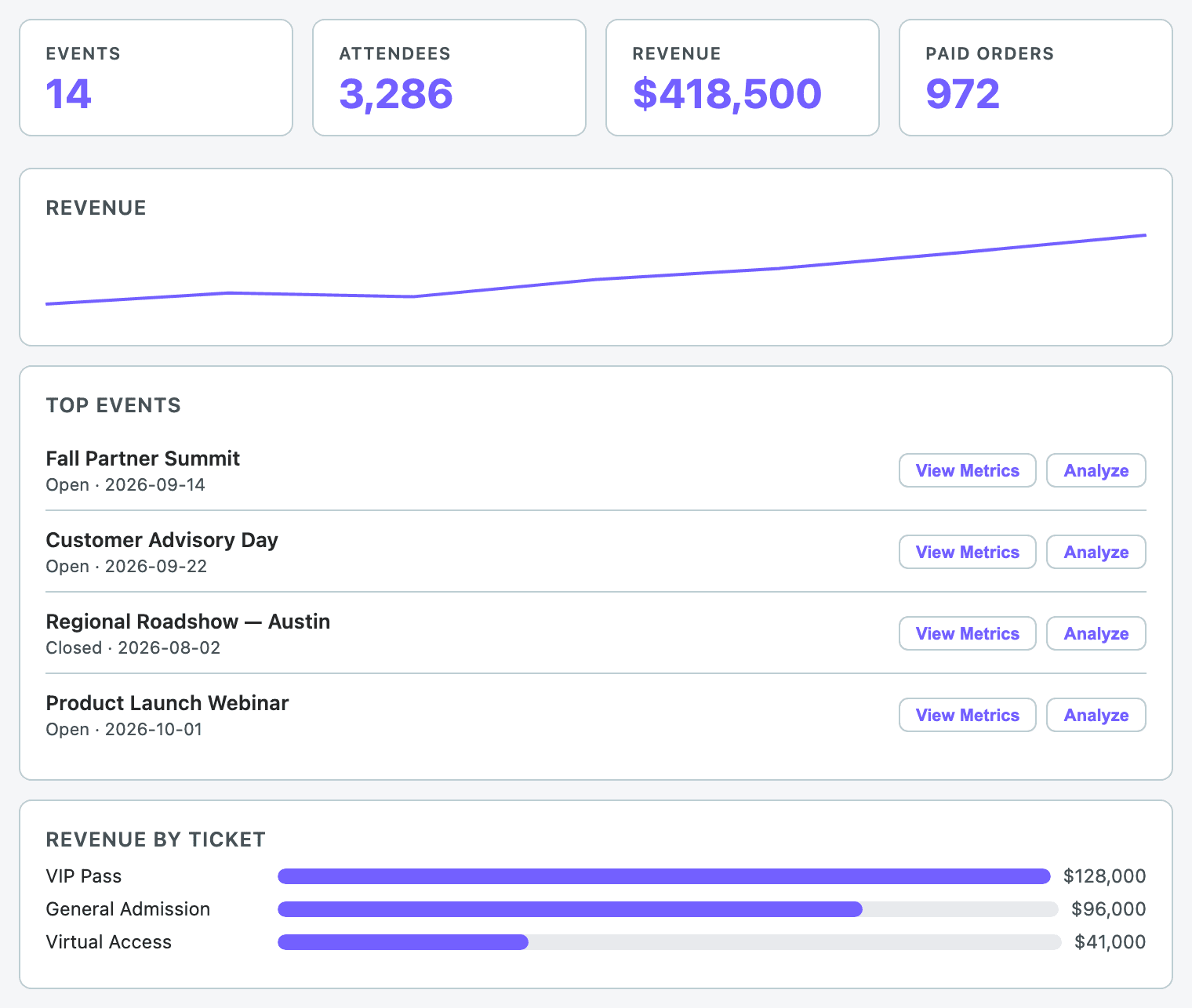
Dashboard
“Give me a dashboard summary across all our events.”
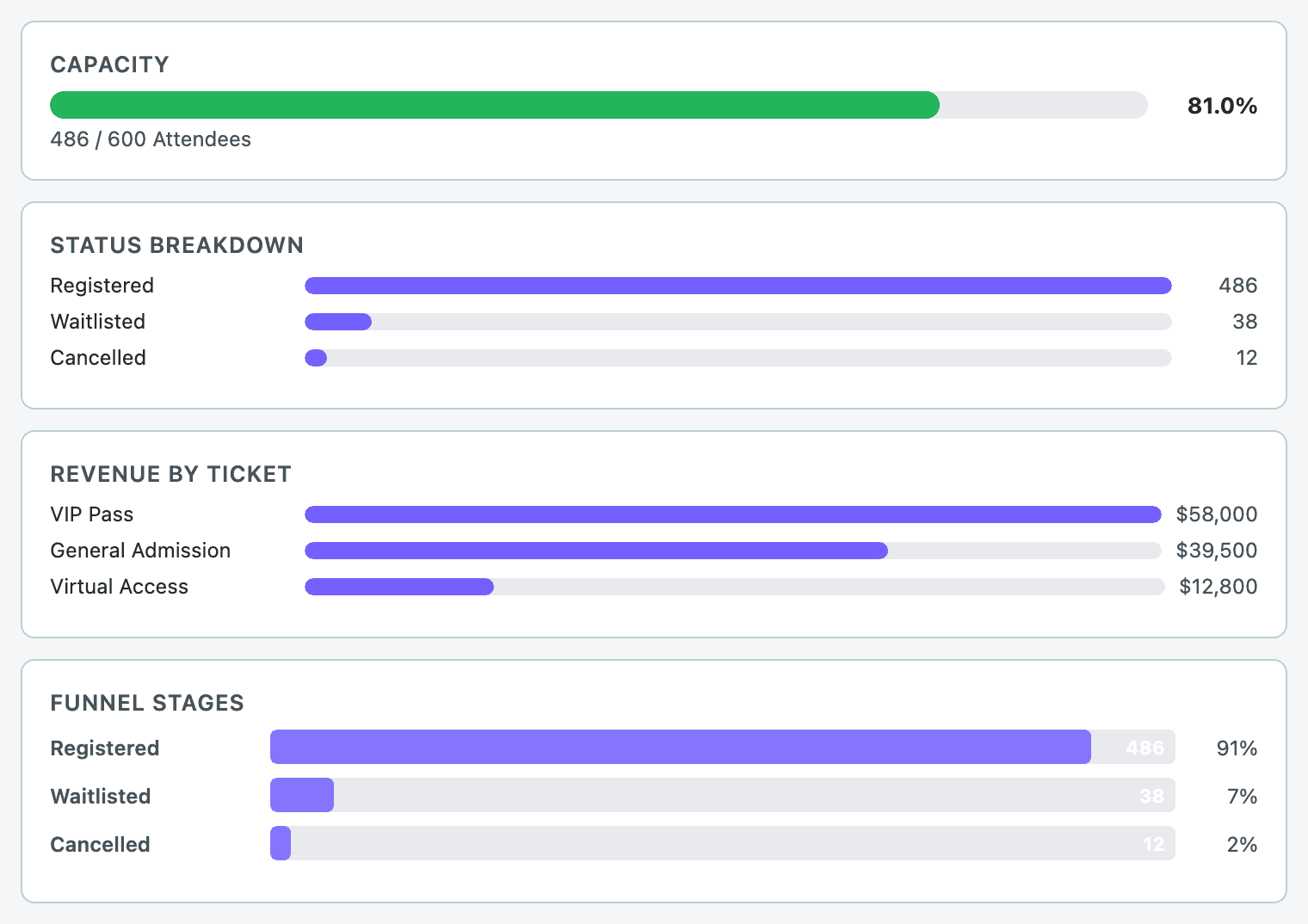
Event metrics
“What's the capacity and registration funnel for this event?”
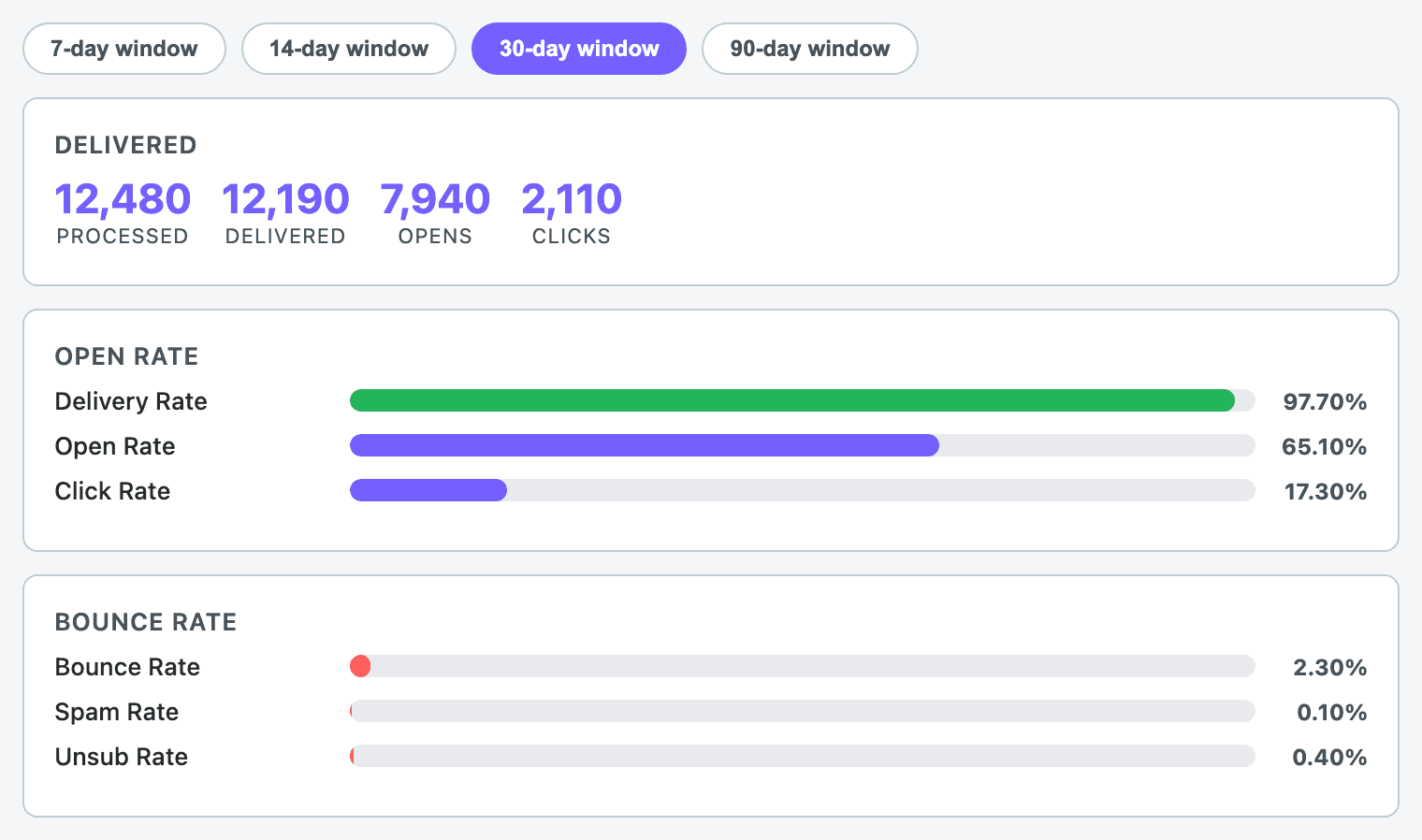
Email performance
“What's the open rate on our last campaign?”
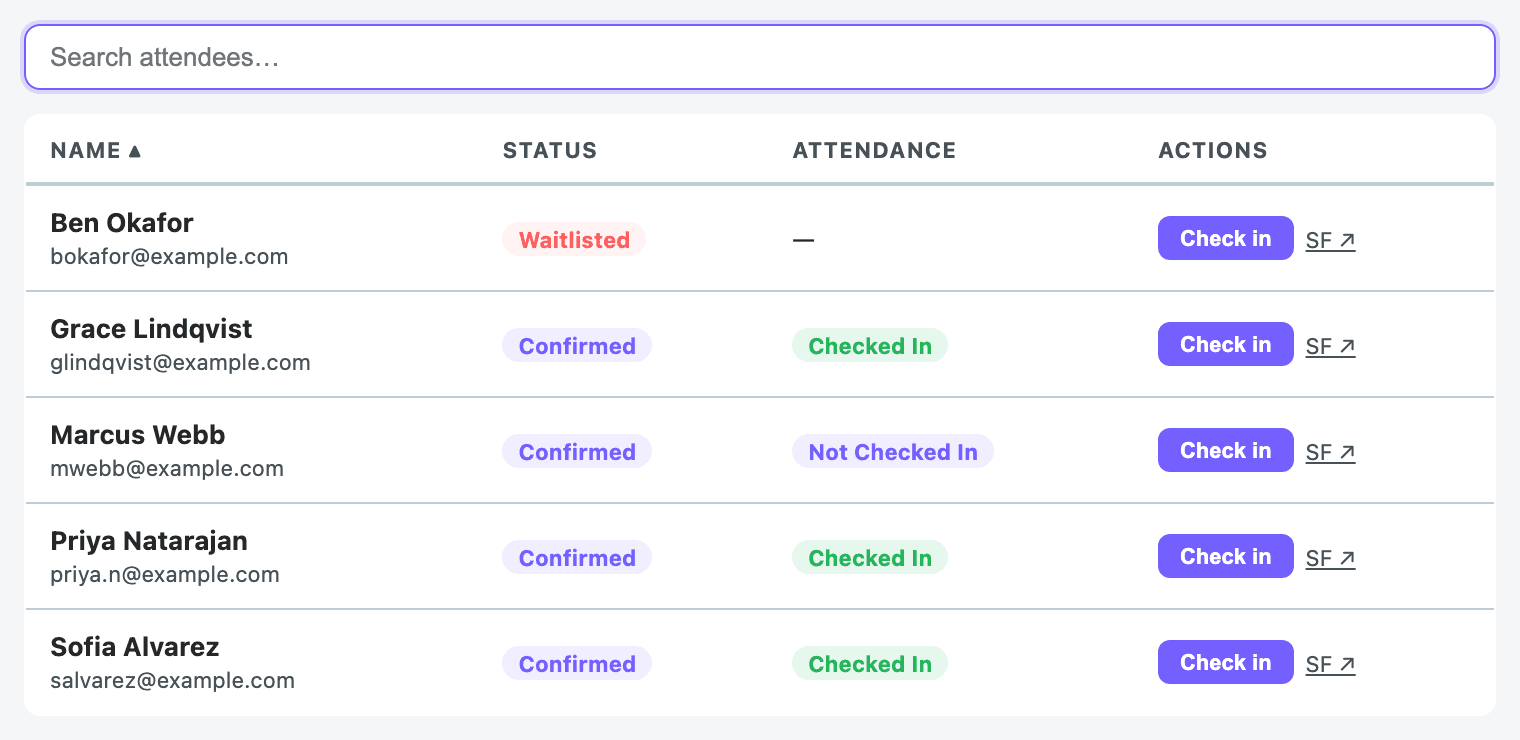
Attendee check-in
“Check in this attendee for the event.”
Ready to take a closer look?
Sign in with your Salesforce credentials, or talk to your Blackthorn contact.